:::: MENU ::::
Showing posts with label whats new. Show all posts

Wednesday, 18 November 2015


From what I’ve experienced of the newest release of 2016 SOLIDWORKS features, SOLIDWORKS was focused on decreasing design time by reducing distractions in the interface. And, for an added bonus, make your mouse seem a bit lazy.

Earlier, I discussed a few Tried-and-True SOLIDWORKS Features to Help You Design Faster.
Below, you’ll see some of the 2016 additions that complement the prior quick tricks.

New 2016 SOLIDWORKS Features:

  1. Auto Resize Property Manager Selection BoxesThere are times when the smallest of things make the biggest differences – this enhancement is definitely one of them. When you have selection box in the property manager that is too small for all the selections, SOLIDWORKS will now automatically resize it for you.  And, if you don’t like the new size, change it by dragging on the little dot under the box and auto size it back with a double-click. It’s a small change, but noticeable.
  2. Foreshortened DimensionsFor some time now, you have been able to foreshorten an angular dimension in SOLIDWORKS. Now, that capability has been extended to linear dimensions.  If you have a dimension that is too long for your drawing view, SOLIDWORKS can clip it to fit the view with a right-click->Display Options->Foreshorten.
  3. Moving Confirmation CornerSometimes when you are working in a feature, your mouse cursor will change up and let you know that you can just do a right-click to accept the command; many times you have to move to the far right or far left to select the check box.  In 2016, SOLIDWORKS has completely eliminated your mouse from having to move to accept a command by first pressing the ‘D’ key and the confirmation corner will come to your mouse! Hence the lazy mouse mention from above.
  4. Tab/Shift-Tab to Hide/Show Components
    To expand on the very handy tab/shift-tab shortcut in assemblies, SOLIDWORKS uses the same keys to hide/show bodies and surfaces inside of parts. This can save tremendous amounts of time without having to click and select hide/show on each body.Keyboard-left_keys
  5. Midpoint HighlightMidpoints have been on center stage for the last few years with the new mid-point line in 2015 and now midpoints being selectable with the mouse. You have always been able to select a midpoint while sketching a new entity or with a right-click->select midpoint. Now, you can just select them. A big advantage, you can select two midpoints and make them coincident without having to pull tricks out with points, right-clicks, or some other obscure method you found.
These are just some of the very handy tidbits that SOLIDWORKS has included in 2016 to help make your design efforts more productive. For your reference, here’s a quick overview of What’s New in SOLIDWORKS 2016.

Thursday, 17 September 2015


The new release of SOLIDWORKS 2016 is less than a month away and when you install SOLIDWORKS 2016 one of the first things you will notice is that with this release there is a new look to the SOLIDWORKS Interface. This is the 3rd interface change SOLIDWORKS has made since it was released and in looking back it has been over 7 years since the last overhaul so it was time for a change.

At first glance more users are going to say what happened to all the colors and according to the SOLIDWORKS WhatsNew2016 on the User Interface Redesign: SOLIDWORKS 2016 provides an updated, clean, and modern user interface.
The innovative styling incorporates the most useful user interface concepts from the portfolio of SOLIDWORKS products.

What SOLIDWORKS has done is take features that users enjoyed from each of their product lines and created the new look you see today. The WhatsNew2016 also tells us that the; Improved icons support high resolution monitors and Microsoft Windows scaling:
  • Redesigned icons are easier to recognize.
  • The color scheme and highlights are easier to identify for color-blind users.
  • If you have a high resolution screen, you can choose larger icons for better visibility.
We will take a look at the new interface starting with the Feature Manager Tree as well as some comparative screen shots of SOLIDWORKS 2016 and 2015 Command Manager for Parts, Assemblies and Drawings.
FeatureManager
Feature Tree

The updated FeatureManager design tree includes easier to identify node states and new tree controls.
  1. Selection breadcrumbs (see our future articles for more on Breadcrumbs)
  2. Selected
  3. Hover state
  4. Suppressed
  5. Hidden
  6. Hierarchy expanded
Command Manager – We will look at the most common Command Manager Toolbars starting with Parts and Sketches. Aside from the obvious color change you will notice that the overall layout and standard features were not changed. Some of the icons did get an updated or more descriptive image. One of the little things that I did notice is how all of the icons now have the same isometric type perspective.

Sketch (2016 on top and 2015 on bottom) – You will see the little changes to a lot of the icons also notice there is a new Instant2D feature for changing sketches.
Sketch
Part – Once aging it is more of the little changes like the Fillet icon is flipped and looking at the Linear Pattern for part and sketches are now similar, part has one of the features filed in and sketch has just one of the entities highlighted.
Part
Assembly
Assembly
Drawing – View Layout
Drawing-View
Drawing – Annotation
Drawing-Annotation
Overall I know the changes are going to take a little to get use to but after using SOLIDWORKS 2016 for just a couple of hours I had no issue getting use to the new look and feel of 2016. There are also some new features that are going to make day to day use of SOLIDWORKS easier and I am looking forward to exploring these new features.

Friday, 7 August 2015


Every year SOLIDWORKS releases a new version of its flagship product, and last year, a new tradition was born here on the Blogs. Over the next few weeks, we’ll be taking a Sneak Peek at 15 new features here on the SOLIDWORKS Blog, and then we’ll be following them up with short, detailed videos on the functionality over on the SOLIDWORKS Tech Blog beginning September 23rd. Until then, you can learn more about SOLIDWORKS 2016 by clicking the banner above and checking out the Beta Program.
Sneak Peek: Expandable PropertyManager Selection Lists
Expandable PropertyManager Input Boxes

When a PropertyManager contains an input box that lists selections, the list expands to show all selections. You can also drag the bottom of the list to control its size. Previously, input boxes showed only three lines. When there were any selections, you had to scroll to locate a specific selection. Now, if you create a fillet feature and need to select many edges, as you make selections, the list expands. Drag the handle or the bottom edge of the list to lengthen or shorten it. To return the list to its full size, right-click and click Autosize or double-click the handle or the bottom edge of the list. If you are adding selections using a PropertyManager that provides two list boxes, you can resize a list without losing focus on the active list. For example, if you are adding selections to one list and it is growing large, you can shrink an inactive list to provide more room and still continue to add selections to the first list without having to refocus on it.

If you want to see more of the 15 Features Coming in SOLIDWORKS 2016 blog series, you can check in on the announcement post from August 3, 2015 where we will be updating and adding links to each of these posts as they go live. Thanks for reading!

Thursday, 21 May 2015


SOLIDWORKS in has many tools in its arsenal and one that I hope every user knows about is DraftSight. DraftSight is used for accessing existing DWG files and creating new DWG files at a fraction of the cost of the alternative CAD product. If you want to learn more about DraftSight please go to https://www.3ds.com/products-services/draftsight-cad-software/

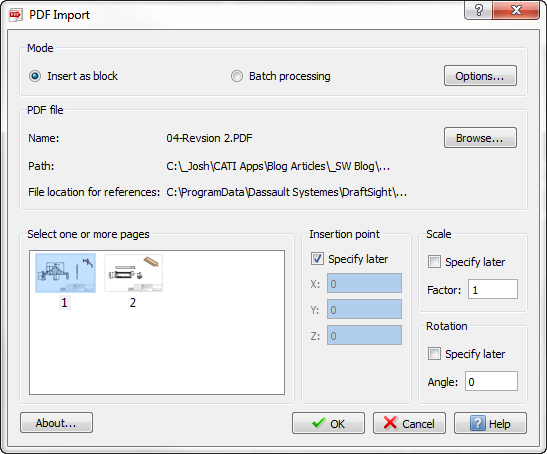
DraftSight, like SOLIDWORKS, has Add-ins available to enhance its capabilities, and one of the newest Add-ins is a PDF Import tool. PDFImport converts and imports PDF files into entities you can modify in DraftSight and save in DWG or DXF. This add-in can also filter the entities created by color and create one layer for each to help you rebuild the layers. You may also use the batch conversion feature to convert many files in once. PDFImport works with the free version of DraftSight, as well as Professional and Enterprise.
PDF_Import-1
Note: Hovering over the images shows a bigger preview of each sheet.
The result imported into the DWG Editor looks as follows
PDF_Import-2
The PDF imports as a block and needs to be exploded before editing.

I have tested the new DraftSight PDFImport tool with several different files and found this took works great for almost anything that I was able to throw at it. The only PDF files that it does not convert into line entities are scanned documents or hand sketches.

Now the real benefit for SOLIDWORKS users is that we can now bring the PDF that we converted to a DWG into SOLIDWORKS.
PDF_Import-3
PDF_Import-4
So with the new tools that have been added to DraftSight not only does this make DraftSight a more powerful tool it also adds to the capabilities of SOLIDWORKS.

Thursday, 12 February 2015

Solidworks world is on as we speck. Here is some of the improvements for SW2016. There is some real time savers here...

HIDE/SHOW MAIN PLANES
Single Button to toggle display of default FRONT/LEFT/RIGHT plane
1 - Hide Show Planes
SELECT SKETCH LINE or ARC MID POINT WITHOUT RIGHT MOUSE BUTTON
Can now immediately select entity midpoint
2 - Select Midpoint
SKETCH CONTEXT TOOLBAR STAYS AVAILABLE
Can access the context sensitive toolbar at any time
4 - Sketch Context Toolbar
PLANE FOR PATTERN DIRECTION
Can use a reference plane or flat face to define pattern direction
3 - Plane for Pattern Direction
CONVERT ENTITIES – INTERNAL LOOPS
Option to select ALL internal loops on a face with one go
5 - Convert Internal Loops
DEGREE STYLE SPLINE
Variable degree spline now available to give more precision and flexibility
6 - Design Style Spline
C2 EDGE BLEND
Curvature continuous edge fillets now supported.
7 - Curvature Contiuous Fillet
HIDE/SHOW BODIES ON TAB KEY
Tab to hide now supported in part doc (not just at assembly level)
9 - Tab to Hide Bodies
SWEEP BI-DIRECTION
Swept Profile can now lie anywhere along the path
8 - Bi Directional Sweep
ASSEMBLY MATE CONTROLLER
Quickly and easily manipulate assemblies with multiple moving parts by dynamically adjusting mates.
10 - Mate Controller
SIMULATION MESH SECTIONING
Can view mesh through cross section of the design as well is with results displayed.
11 - Simulation Section
SIMULATION RELEASE PRESCRIBED DISPLACEMENTS
Can turn enforced movements on or off alleviating artificial stresses in the simulation
12 - Simulation Perscription
FLATTEN SURFACE ENHANCEMENTS
Flatten surface with internal holes, flatten curves on surface, include split lines
13 - Flatten Everything
SOLIDWORKS PDM STANDARD comes with SOLIDWORKS
14 - PDM Standard
EXTENDED QUICKMATES
Now support profile, width and symmetry
15 - Extended Quick Mates
TOOLBOX FAVORITES FOLDER
Store favorite fasteners in a convenient folder for easy access
Toolbox Favorites Folder
COPY & PASTE ENHANCEMENTS (Ctrl-C, Ctrl-V)
Retain mates when copying a series of parts.
16 - Copy Paste Enhancements
COPY WITH MATES ENHANCED
Improved support for advanced mates.
17 - Copy with Mates Enhancements
CHANGE TOOLBOX FASTENER TYPE
Easily swap out an existing fastener with a different one form the toolbox library
18 - Change Fastener Type
RENAME PART
Rename a part from the assembly level without having to open the doc
19 - Rename Part in Assembly
DRAWINGS – DIRECT SCALE CHANGE
Change drawing scale directly from lower toolbar
20 - Fast Drawing Scale
DRAWINGS – NESTED BALLOON SORTING
Ability to drag and drop balloons to nested balloons along with various sorting options
21 - Nested Balloon Sorting
MBD (Model Based Definition)
22 - MBD
eDRAWINGS – SPIN ABOUT SCREEN CENTER
Spin about screen center, not the model center
23 - Spin ABout eDrawings Screen Center
eDRAWINGS – TABBED DOCUMENTS
Multiple open documents are shown as tabs
24 - Tabbed Documents
PHOTOVIEW SCENE ILLUMINATION PROOF SHEETS
Visually select from different illumination settings
25 - Illumination
USER INTERFACE – MODERN LOOK
Consistent look across SolidWorks Product Line
26 - New Interface
USER INTERFACE – SCALES WITH OPERATING SYSTEM
Icons and text scale automatically with Operating System settings
27 - Interface Scales with Operating System
USER INTERFACE – CHILD FEATURE REFERENCE
Can now show child dependencies
28 - Parent Child References
USER INTERFACE – BREADCRUMBS
Access specific information level in parts/assemblies without the need for the feature tree
29 - Breadcrumbs

Wednesday, 11 February 2015


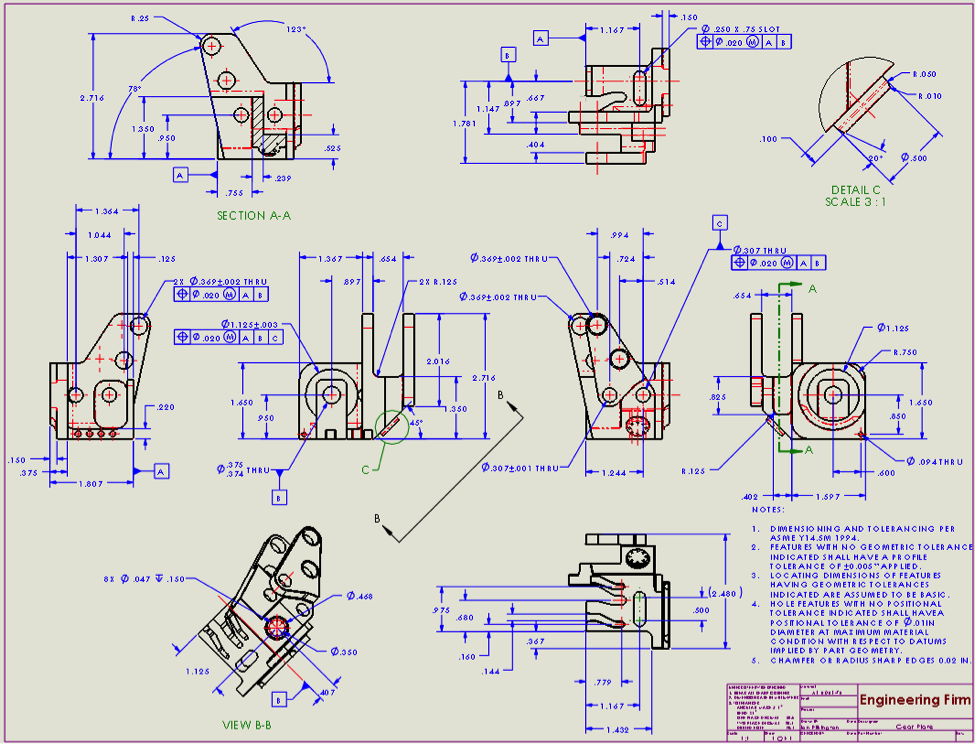
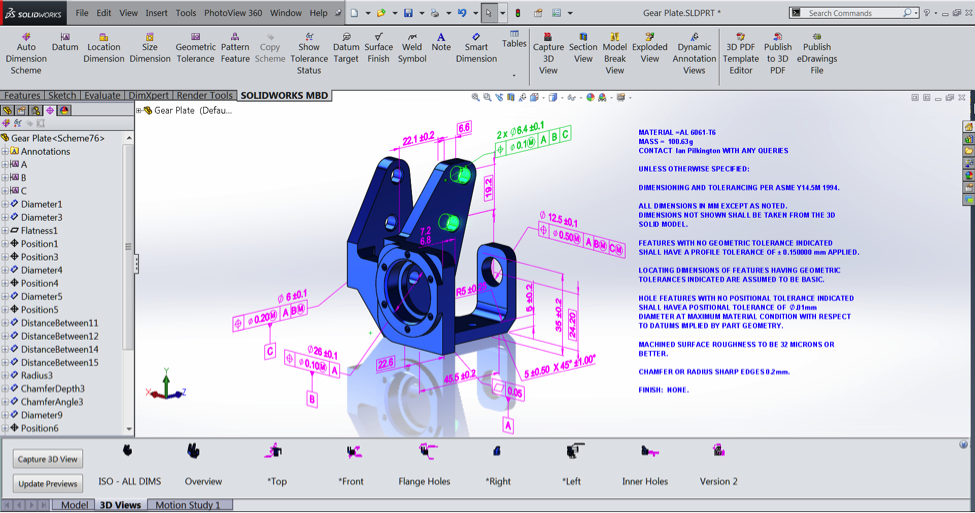
I’m pleased to announce that SOLIDWORKS Model Based Definition (MBD) 2015 was released this week!  Many people asked me what is MBD and why. These two images explain it well, and you tell me which one is easier to read?
2d engineering drawingFigure 1: 2D engineering drawing

MBDFigure 2: Model based definition in SOLIDWORKS MBD 2015
Dynamic Annotation View

Clearly the second one conveys design intent more effectively because we live in a 3D world and our brains naturally think in 3D. Traditional 2D engineering drawings have been serving us well in the past more than 200 years, but they also present many challenges:
  • Counterintuitive by definition,
  • prone to errors in creation and consumption,
  • expensive to produce and maintain,
  • easy to mismatch with 3D design,
  • incompatible with highly productive 3D applications such as simulation and 3D printing,
One of the consequences is that production procedures and supply chain have to constantly convert design data between 2D and 3D. For example, study showed that 40% of downstream consumers and suppliers have to manually recreate 3D models per 2D drawings. (Source: Chad Jackson, The 2014 State Of Model Based Enterprise Report, 2014). How much time and effort could have been saved and how many human errors could have been avoided in this kind of manual remodeling and data re-entry alone if we could communicate in 3D?
Now we can. SOLIDWORKS MBD is built specifically to answer the above problems. It is an integrated drawingless manufacturing solution for SOLIDWORKS. It helps companies define, organize, and publish 3D Product Manufacturing Information (PMI) in industry standard file formats such as eDrawings® and 3D PDF. Unlike traditional 2D drawings, SOLIDWORKS MBD guides the manufacturing process directly in 3D, which helps streamline production, cut cycle time, reduce errors, and support industry standards such as Military-Standard-31000A, ASME Y14.41, ISO 16792, DIN ISO 16792, and GB 24734.
SOLIDWORKS MBD provides 3 key capabilities:
  1. Intelligent and semantic 3D PMI definition and organization. To help engineers define 3D dimensions and tolerances, we built in hundreds intelligent GD&T rules in the background guiding this definition process. Furthermore, to avoid massive overlapping 3D PMI or so-called “fur-ball” issue, SOLIDWORKS MBD features intuitive and patent-pending organization technologies such as 3D Views and Dynamic Annotation Views shown in Figure 2.
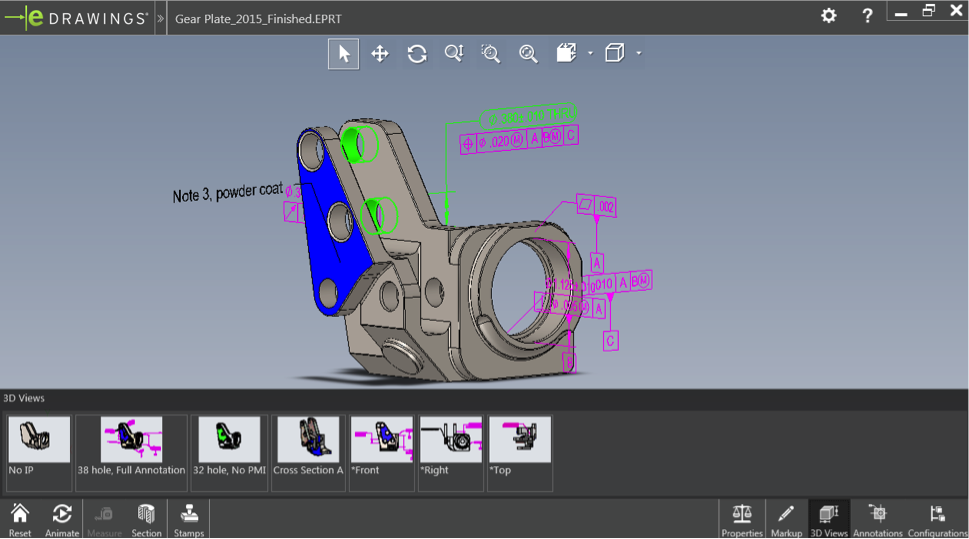
  2. 3D PMI publishing. As proven by MBD pioneer companies like Brazilian furniture manufacturer Viecelli Móveis or U.S. manufacturer of custom handling and packaging systems Automatic Handling International, the majority of MBD benefits come from downstream production and supply chain. We publish 3D PMI into eDrawings and 3D PDF (Figure 3.1 and 3.2) to enable downstream to fully leverage 3D data. Also, SOLIDWORKS MBD 3D PDF is based on the advanced PRC format which was just established as an ISO standard 14739: 2014. It’s accurate for measuring and machining, rich in information, and compact for easier distribution.
    Figure 3.1: SOLIDWORKS MBD 3D PDF Figure 3.1: SOLIDWORKS MBD 3D PDF
    edrawingsFigure 3.2: eDrawings
  3. Friendly 3D PDF template customization. To further facilitate downstream 3D data consumption, we also provide a 3D PDF template editor to tailor 3D PDF for multiple use cases or different teams, such as 3D PDF for part or assembly, Request for Quote, or machine part templates for remote shops. We can easily insert company logos or map product meta-properties into 3D PDF.

Figure 4: 3D PDF Template EditorFigure 4: 3D PDF Template Editor

To learn more about SOLIDWORKS MBD, please visit the product pages.